Getting started
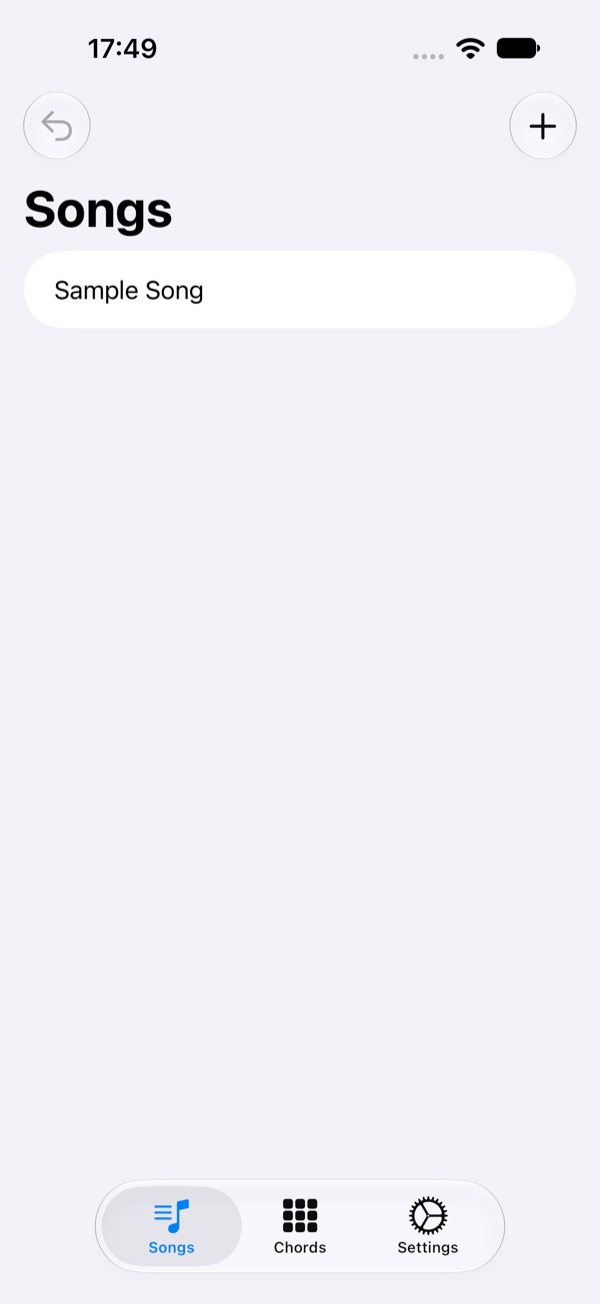
ChordAid has three tabs:
- Songs holds the songs you write. A song is a list of sections, such as intro, verse and chorus. Each section has its chords, a strum pattern and lyrics.
- Chords is a chord reference. Every chord you add gets a column, with all the ways to play it underneath.
- Settings changes how diagrams look and sound, and holds purchases, this guide and the support address.
A Sample Song is there to try things out. Open it, tap Play Song (the ▷ in a circle) and play or sing along. You can change it freely or delete it.
On iPad the tabs sit in a sidebar, and the song list stays beside the song you have open.
Reading a chord diagram
A chord diagram is the neck of your instrument seen from the front, with the headstock at the top. Strings run top to bottom, lowest-sounding on the left. Frets run across.
- The nut. A thick line at the top means the shape is played at the end of the neck, where open strings ring.
- The fret number, in grey beside the first row, says which fret of the neck that row is. It shows on every diagram, so an open chord shows I. With a capo it counts the capo too: an open shape with the capo at fret 2 shows III. Settings › Neck Position switches Roman numerals to 1, 2, 3.
- X and O above the nut. X: don’t play that string. O: play it open. A gold O means the open string is the chord’s root, as in an open E or A chord.
- A gold dot is the root, the note the chord is named after. Gold is the only way the diagram marks it.
- A black dot is any other note of the chord, pressed at that fret. In dark mode it is white.
- A bar is a barre: one finger presses several strings at the same fret, from the lowest barred string to the edge of the neck. The dots on it are the strings that sound at that fret.
- The legend under the strings says what each string plays in the chord. Muted strings have none.
The legend: intervals or note names
By default the legend shows each note’s interval: how far it is from the root. That tells you which note makes a chord minor, or which one you could leave out. Settings › Interval Style picks between two ways of writing them.
| Shown as | Or as | Interval | In a C chord |
|---|---|---|---|
| 1 | 1 | Root | C |
| m3 | ♭3 | Minor third: makes the chord minor | E♭ |
| M3 | 3 | Major third: makes the chord major | E |
| 4 | 4 | Perfect fourth, as in sus4 | F |
| D5 | ♭5 | Diminished fifth | G♭ |
| 5 | 5 | Perfect fifth | G |
| A5 | ♯5 | Augmented fifth | G♯ |
| M6 | 6 | Major sixth | A |
| m7 | ♭7 | Minor seventh, as in C7 and Cm7 | B♭ |
| M7 | 7 | Major seventh, as in Cmaj7 | B |
Extensions follow the same pattern: M9 or 9, 11, A11 or ♯11, M13 or 13. A note that isn’t part of the chord has no interval, so it is blank. That happens, for example, with the extra bass note of a slash chord such as C/D.
Switch Settings › Legend to Note Names to see the notes themselves. Settings › Note Names picks English letters (C D E F G A B) or German (C D E F G A H, where H is B and B is B♭).
Left-handed
With Settings › Handedness set to Left, every diagram is mirrored: the lowest string is on the right and barres run to the left edge. The finder’s fretboard and the tap areas below follow the same hand.
Hearing a shape
Tap any diagram to hear it. Where you tap decides how it plays:
- Top half, bass side: the bass note alone.
- Top half, other side: a strum.
- Bottom half: an arpeggio, string by string. Settings › Sound › Arpeggio Speed sets how fast.
The speaker button beside every Play button sets the volume.
Diagrams don’t show which finger goes where. They show the frets to press and leave the fingering to you.
The Chords tab
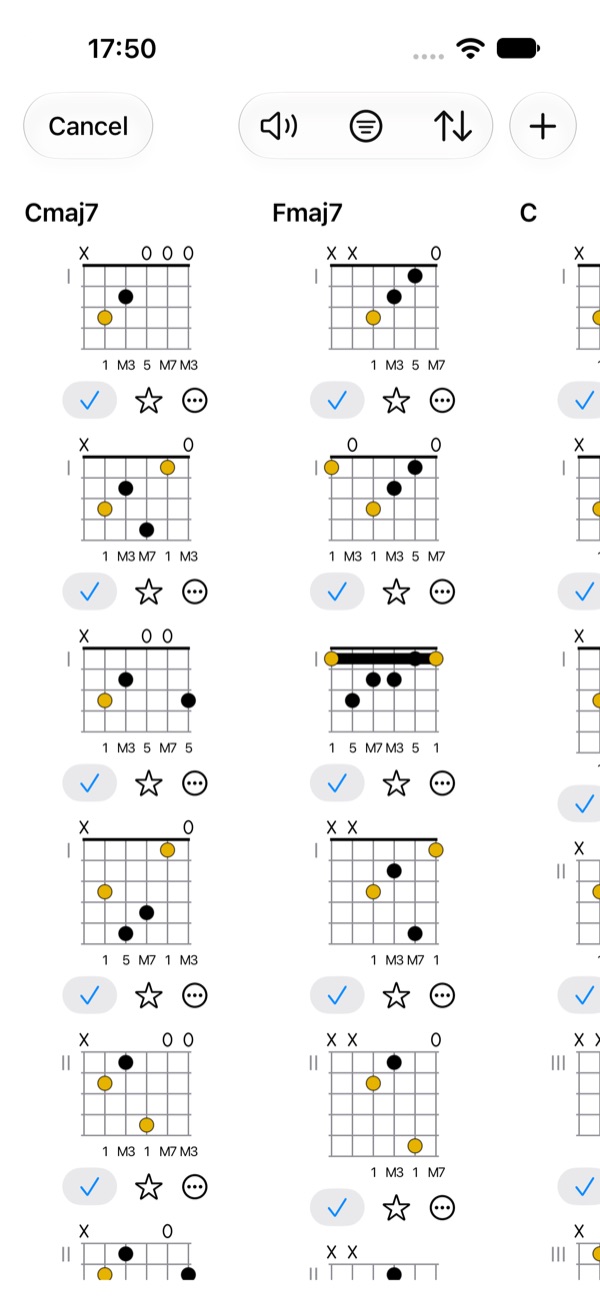
The Chords tab is where you look chords up, compare them side by side and collect the shapes you like. Each chord gets a column, and you scroll a column to see every shape for that chord. Scroll sideways to move between chords.
Adding a chord
Tap + (Add a Chord) and build the name from left to right:
- Root: the note the chord is named after, from the keyboard.
- Chord: the chord type. The types are grouped as 3rds, 7ths, 9ths, 11ths, 13ths, add and sus. A type with a lock is a purchase.
- /bass (optional): a different lowest note, for a slash chord such as C/G. Any Bass clears it.
- ^top (optional): the highest note you want to hear. Any Top Note clears it.
Tap Add, and the chord’s column appears. To name a chord from frets you already know, use Find from a Shape instead.
Under every shape
- ☆ stars the shape as a favourite. Favourites belong to the tuning and capo you starred them in.
- ••• opens a menu. Share saves or sends the diagram as a picture. Add to puts the shape into the last song you opened, in one of its sections or a new one. If that song is in another tuning or capo, the menu offers Use ‹Song›’s Tuning first.
- ✓ appears only when you are choosing a chord for a song, and puts this shape into the song.
The toolbar
- Tuning and Capo (the headstock): see Instruments, tunings and capo.
- Filter: which shapes you see and in what order. See Choosing the shapes you see.
- Arrange Chords (↑↓): drag columns into a new order or delete them. Deleting a column keeps its stars.
- Find from a Shape: see Finding a chord from a shape.
Each tuning has its own palette, so your guitar chords and your ukulele chords stay apart. A deleted chord, section or song can be brought back with Undo.
Choosing the shapes you see
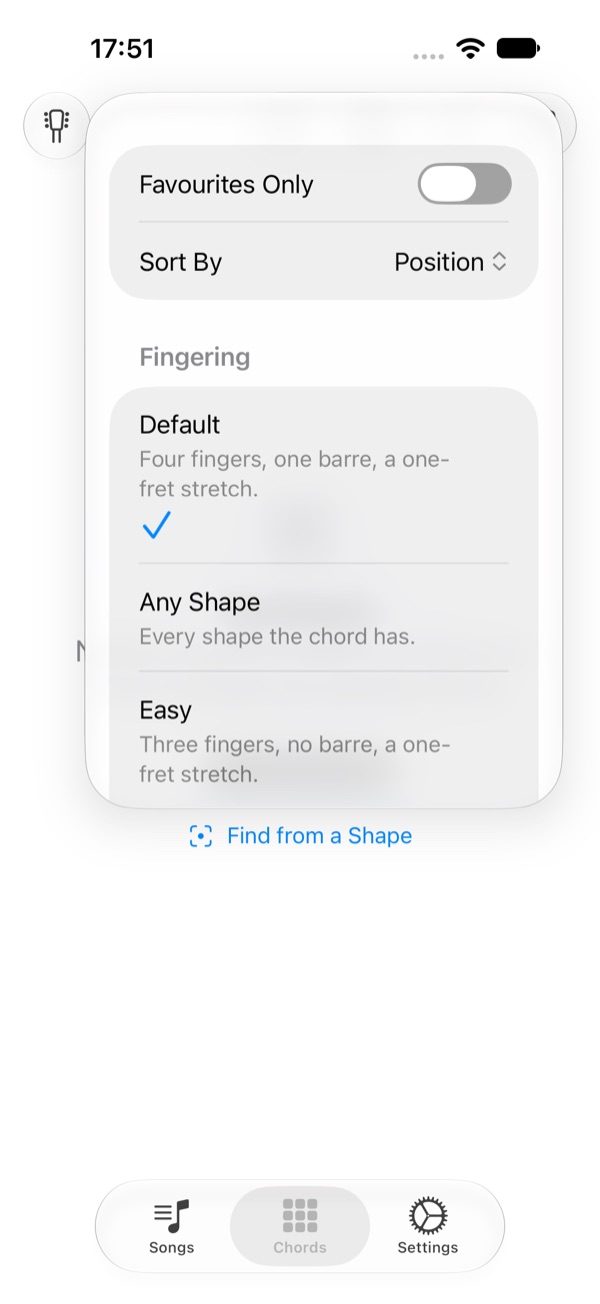
Most chords can be played many ways. The Filter button above the palette decides which shapes are shown, so you see the ones that suit your hands and your playing. The filter applies to every palette.
Changing the filter never changes a song. A chord keeps the exact shape you put in, whatever you filter later.
- Favourites Only shows just the shapes you starred, for this tuning and capo, whatever the other filters say.
- Sort By Position lists shapes from the nut up the neck, easier ones first at each position. Difficulty lists the easiest first.
Fingering
Pick a ready-made fingering, or Custom to set each part yourself.
| Fingering | What you see |
|---|---|
| Default | Up to four fingers, one barre (big or small) and a one-fret stretch. A few bass strings may be left out. |
| Any Shape | Every shape the chord has, including two-fret stretches and several barres. |
| Easy | Three fingers, no barre, a one-fret stretch. |
| No Barre | Default, without a barre. |
| Movable | Default with no open strings, so you can slide the shape anywhere on the neck. |
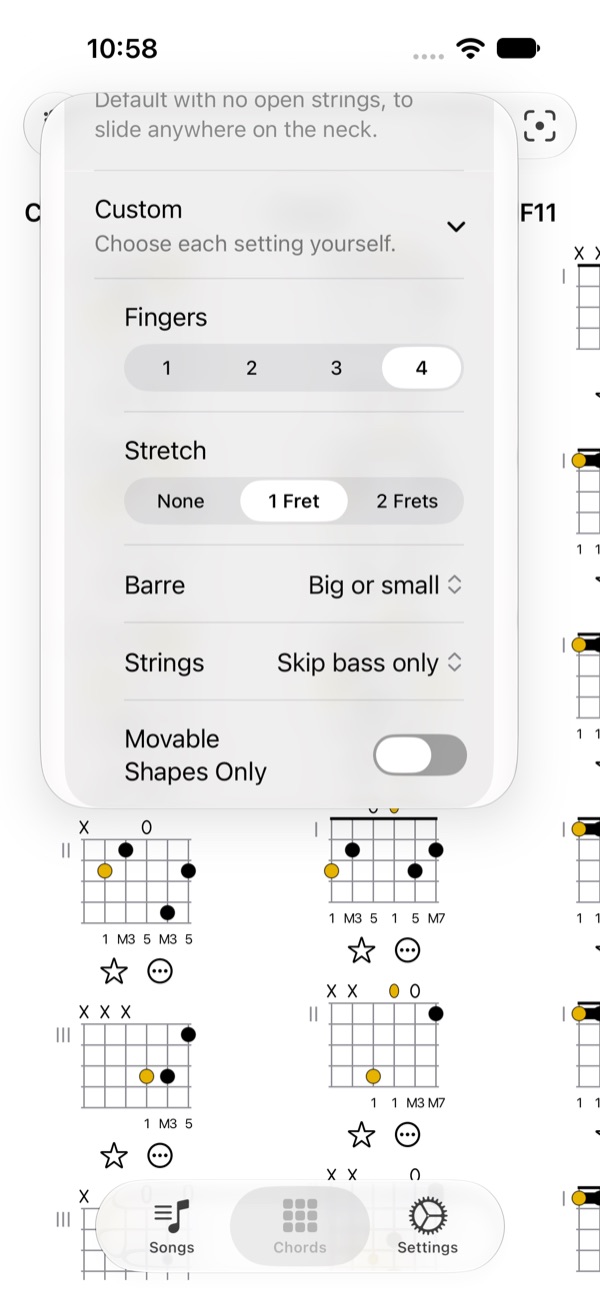
Custom
Changing any of these switches the fingering to Custom.
- Fingers: the most fingers a shape may need, 1 to 4.
- Stretch: how far apart your fingers may be. None, 1 Fret or 2 Frets.
- Barre: No barre, Small, Big or small, Small with any finger (a small barre with a finger other than the index), More than one. Each choice also allows the ones before it.
- Movable Shapes Only: no open strings. With a capo, a string played at the capo counts as open.
- Strings: which strings a shape may leave out.
- All strings: every string sounds.
- Skip bass only: only the lowest strings may be left out. Good for strumming.
- Skip bass or high: strings may be left out at either edge, never in the middle. Still strummable.
- Thumb and fingers: at most four strings sound, in any pattern. For finger-picking.
- Thumb and fingers or strum: either of the two above.
- Skip any string: strings may be left out anywhere, gaps included.
Which notes a chord needs
Two settings decide what counts as a complete chord. They are in Settings › Harmony, because you set them once.
- Inversions: Root Position shows only shapes with the root as the lowest note. All shows every inversion. Automatic follows each instrument’s usual practice.
- Omitted Intervals: Strict leaves a note out only when there aren’t enough strings. Standard leaves out notes in common cases, like the fifth of a seventh chord. Relaxed allows less common cases too, like the fifth of a triad. Automatic picks for you.
Finding a chord from a shape
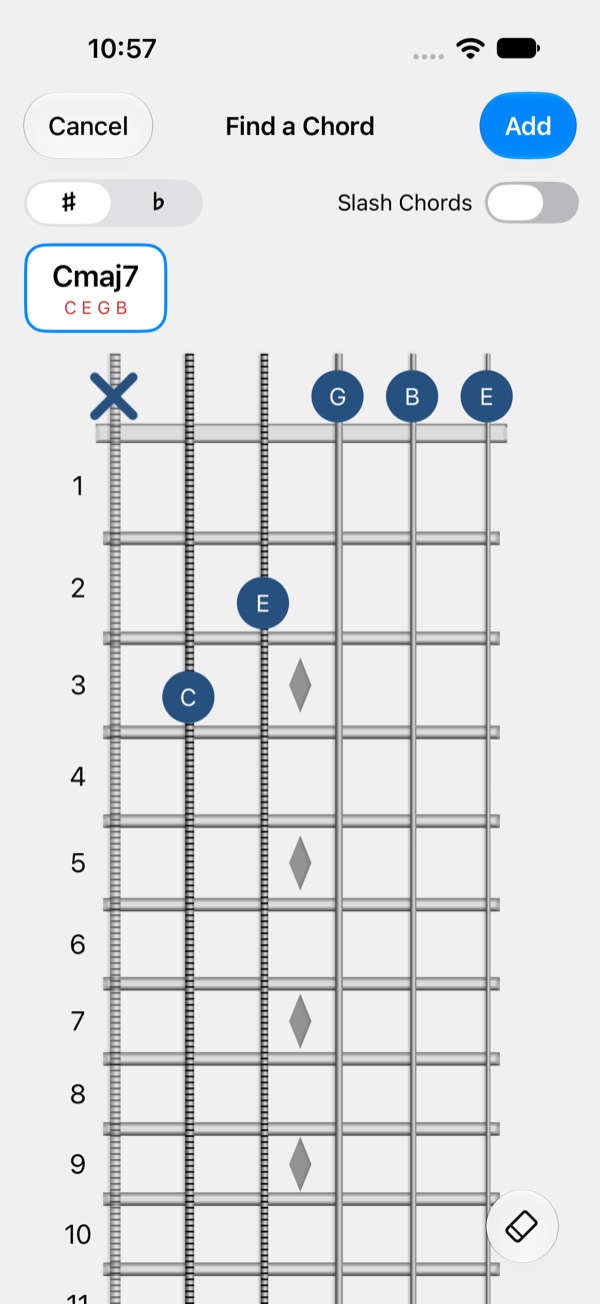
Know a shape but not its name? Tap Find from a Shape in the Chords tab, or Find from Shape in a song. A fretboard opens with every string muted.
- Tap a fret on a string to play that string there. Tap the nut row for the open string.
- Tap the note again to mute the string.
- Swipe across the strings to strum what you have.
- Clear (the eraser) starts again.
Once at least three different notes sound, the chords they could be appear above the fretboard, each with its notes. The ones you are playing are in red. The outlined name is the one Add uses. To get another name, change the shape, or switch ♯ / ♭ for the spelling and Slash Chords for names with a different bass note.
Add from the Chords tab adds the chord’s column and points out your shape in it. It doesn’t star the shape. Add from a song puts the shape straight into the song.
Writing a song
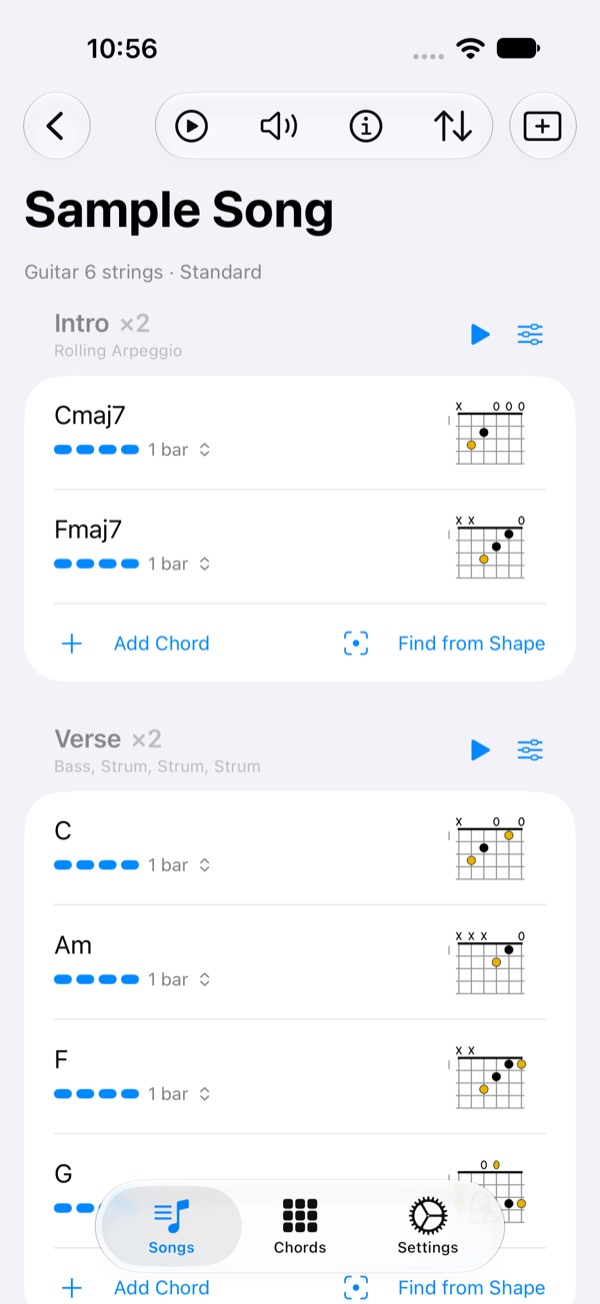
A new song
In the Songs tab tap + (New Song). Title and artist are optional. Choose the tuning carefully: it can’t be changed once the song exists, because every shape in the song belongs to it. The capo can change later. Set a tempo, tap Add, and the song opens.
Sections
Tap Add Section for an intro, a verse, a chorus and so on. Each section header shows its name, how many times it repeats (×2), its strum pattern, a ▶ to hear the section and an Edit Section button.
Chords
- Add Chord at the end of a section opens the song’s own palette, already in the song’s tuning and capo. Tap ✓ under the shape you want.
- Find from Shape names a chord from frets you tap, and adds that exact shape.
- To change a chord, tap its name, then Choose from Palette or Find from Shape.
- The length menu under each chord is 1 bar, ½ bar or ¼ bar. Songs are in 4/4, and the four dashes show the beats the chord lasts.
- Tap a chord’s diagram to hear it. Swipe a chord left to delete it, and touch and hold to drag it to another place in its section.
A song’s palette starts with the song’s own chords, so songs in different keys don’t clutter the Chords tab. When it is empty, Add Chords with Starred Shapes brings in every chord you starred in this tuning and capo.
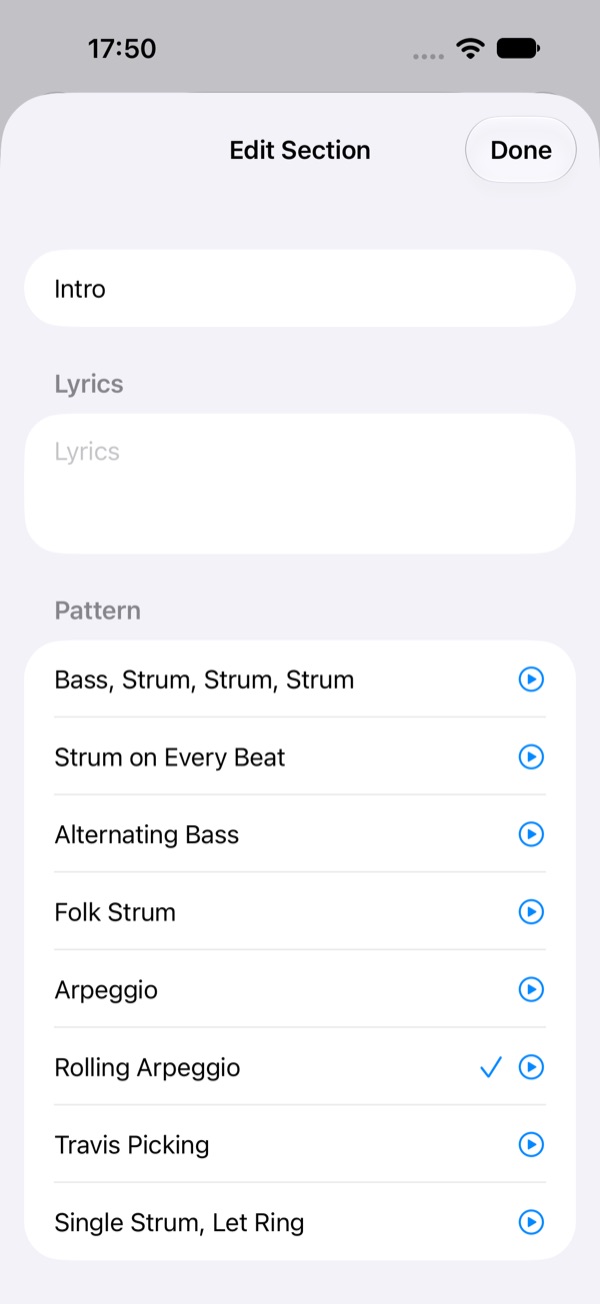
Edit Section
- Name and Lyrics. Lyrics show under the section’s chords.
- Pattern: how each chord is played. Bass, Strum, Strum, Strum (the default); Strum on Every Beat; Alternating Bass; Folk Strum; Arpeggio; Rolling Arpeggio; Travis Picking; Single Strum, Let Ring. The button beside each one plays a preview.
- Repeats: 1 to 16 times.
- Follow Song: turn it off to give this section a tempo of its own.
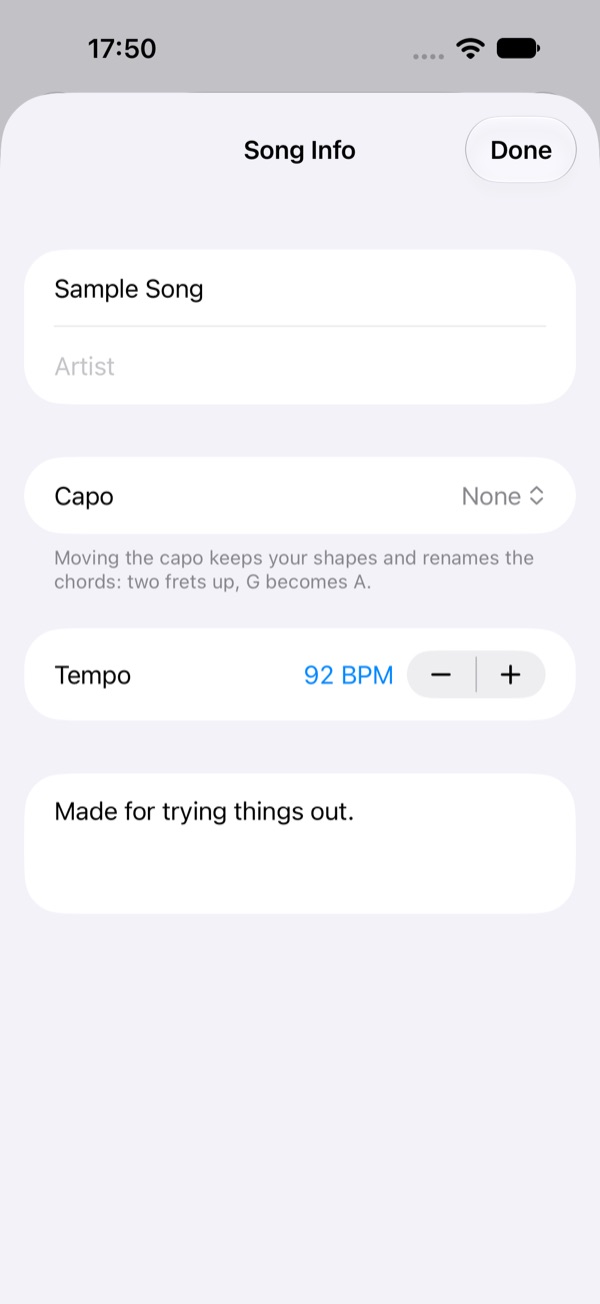
Song Info
The info button (ⓘ) edits the title, artist, tempo and notes, and moves the capo (None, or frets 1 to 7). Moving the capo keeps your shapes and renames the chords: two frets up, G becomes A. It also clears Undo’s history.
The tempo menu offers metronome marks from Largo to Presto. The − and + buttons change it one beat per minute at a time.
Arranging and undoing
Arrange Sections (↑↓) reorders or deletes whole sections. Undo brings back the last deleted chord, section or song. On iPad with a keyboard, ⌘Z works too.
Playing along
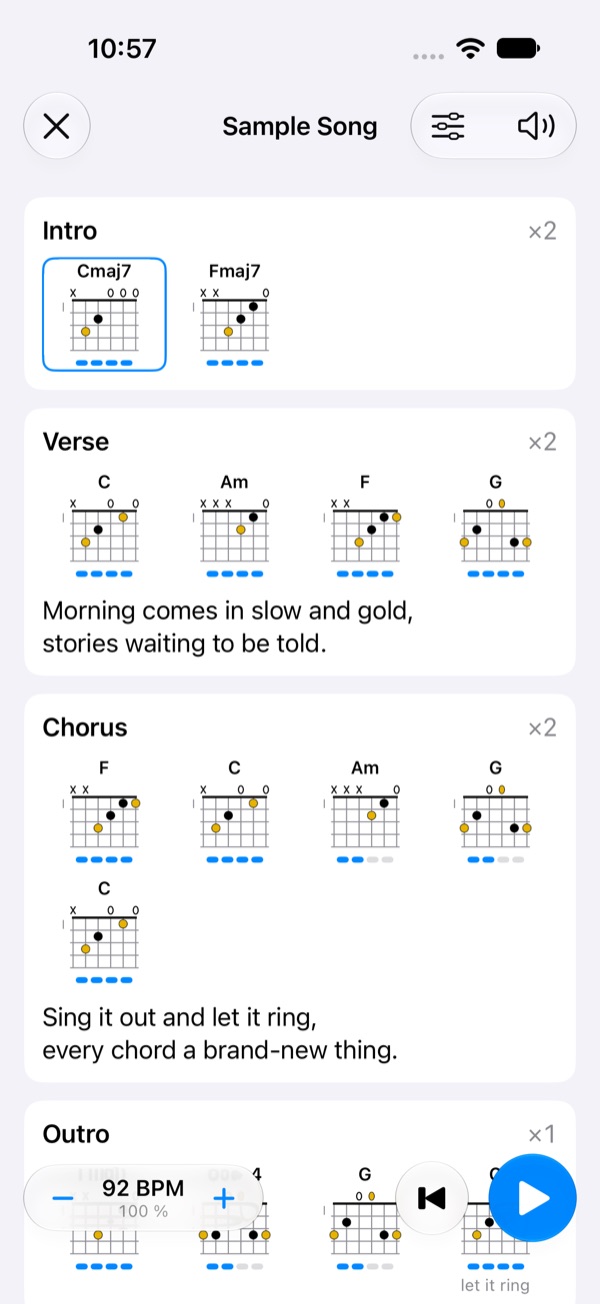
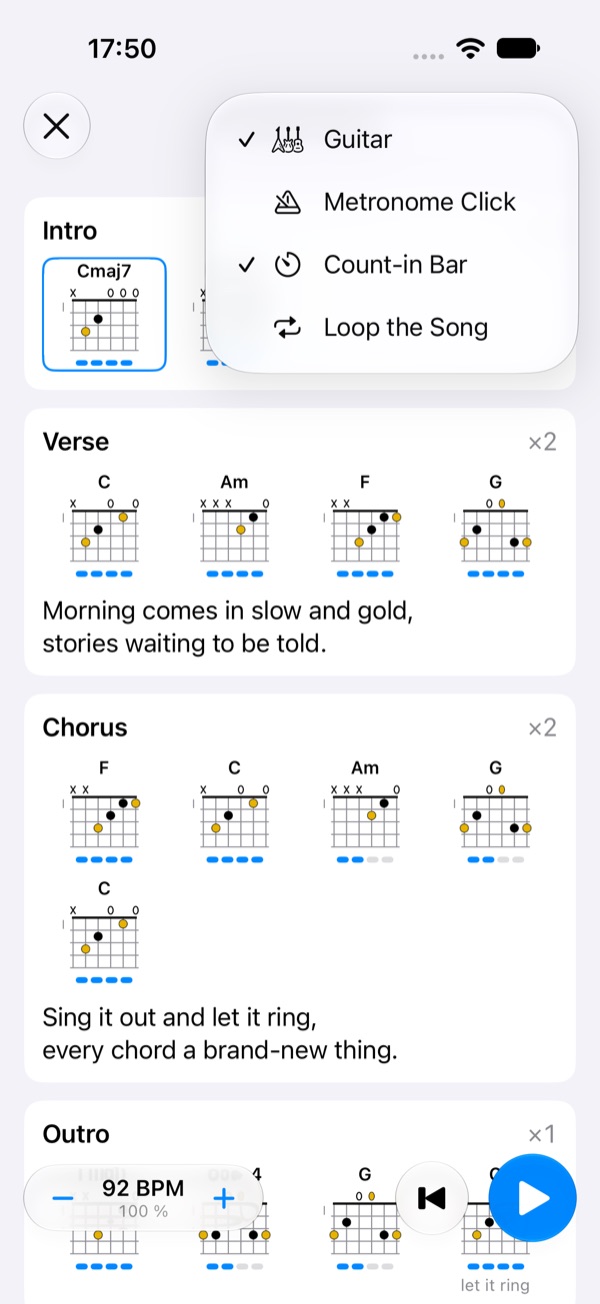
Tap Play Song on a song. ChordAid plays the whole song with each section’s pattern, repeats and tempo, while you play or sing along. The screen follows the section that is playing and stays awake. Scroll by hand to look ahead; following resumes when the next section starts.
- Options: Guitar (the playing itself), Metronome Click, Count-in Bar and Loop the Song.
- Tempo: − and + slow the song down or speed it up from 50% to 150% of its tempo, to practise slowly and build up.
- Back to Top starts again from the first section.
Steering while you play
- Tap the section that is playing to hear it once more. Each tap adds a pass (+1).
- Tap another section to play it next. It gets a dashed outline; tap it again to cancel.
- While stopped, tap a chord or a section to start from there.
A call or switching to another app pauses playing. Sections with no chords are skipped.
Instruments, tunings and capo
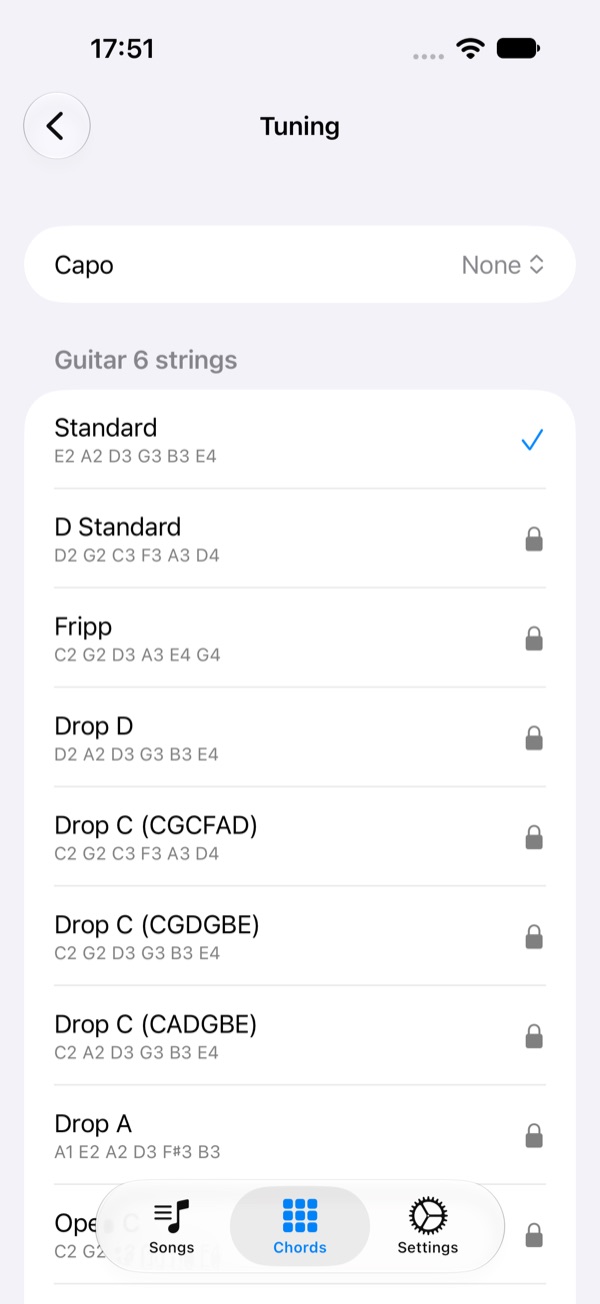
In the Chords tab, the headstock button opens Tuning. The Capo comes first, None or frets 1 to 7, then every instrument with its tunings. Each tuning lists its open strings from lowest to highest, such as E2 A2 D3 G3 B3 E4. Tapping a tuning takes you straight back to its palette. A lock means the tuning is a purchase.
ChordAid covers 11 instruments in 60 tunings: guitar, 4- and 5-string bass guitar, ukulele, mandolin, bouzouki, guitalele, banjo, waldzither, charango and cittern.
With a capo, every shape is drawn and named from the capo, and the fret number counts the capo too (see Reading a chord diagram). On a five-string banjo the capo leaves the short drone string free, and ChordAid says which fret to spike it at, or what to retune it to, so it matches.
A song keeps the tuning it was created in. The Chords tab’s tuning doesn’t affect your songs.
Settings
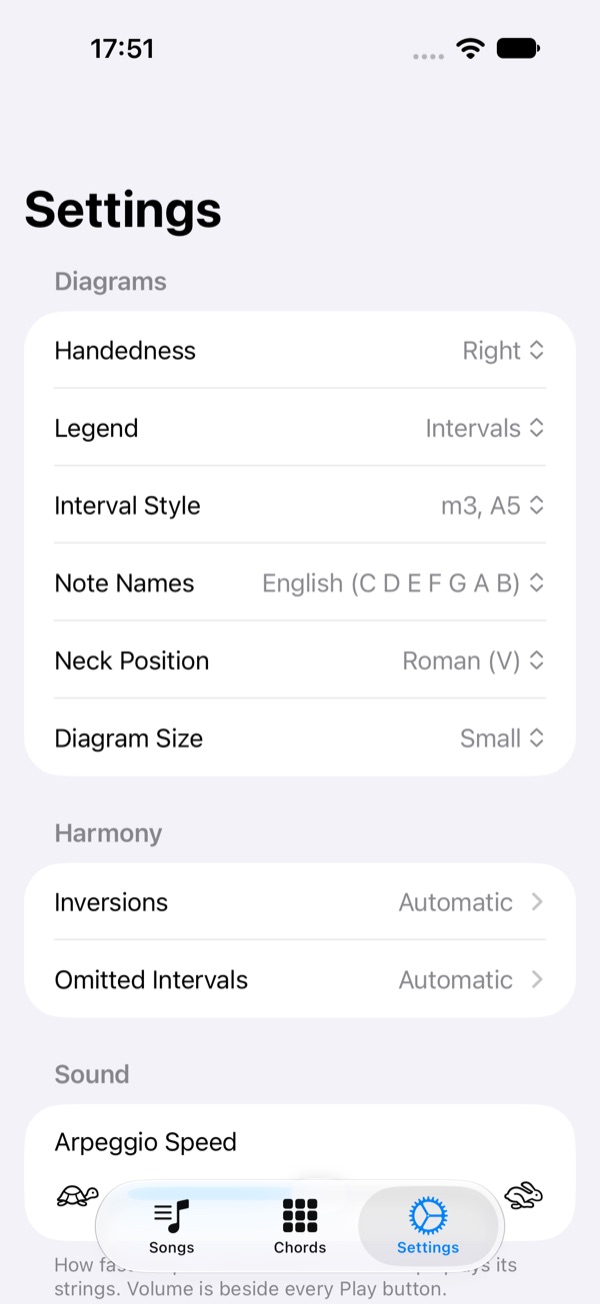
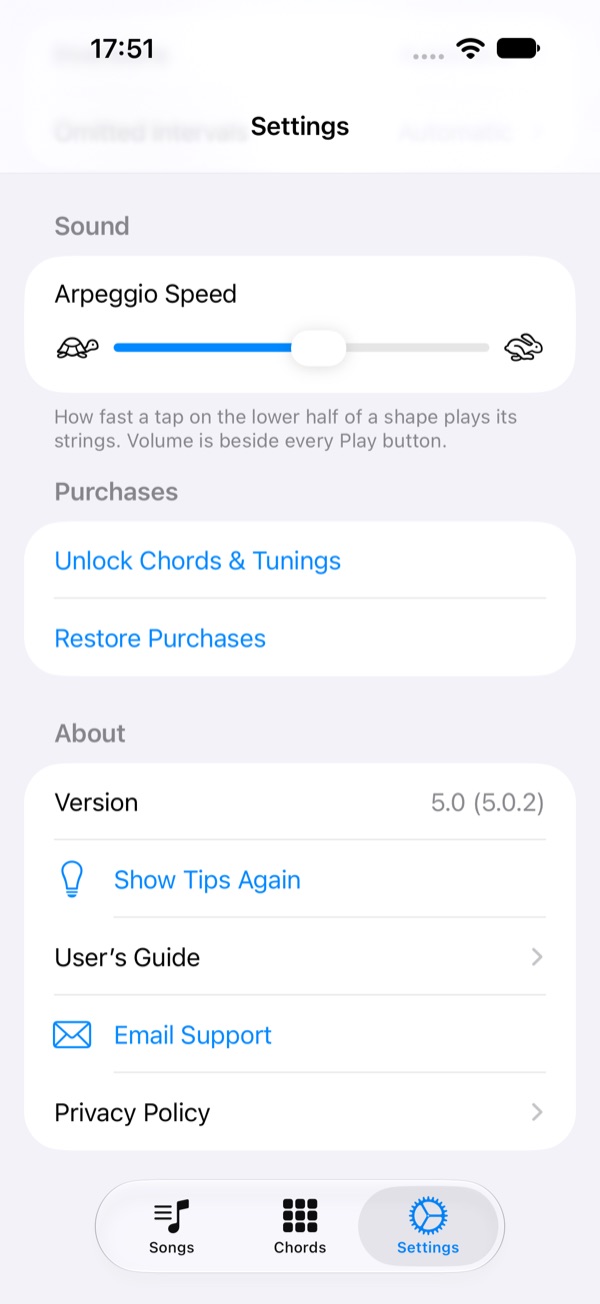
| Setting | Choices | What it does |
|---|---|---|
| Handedness | Right, Left | Left mirrors every diagram and the finder’s fretboard. |
| Legend | Intervals, Note Names | What appears under each string. |
| Interval Style | m3, A5 or ♭3, ♯5 | How intervals are written. Shown when Legend is Intervals. |
| Note Names | English, German | C D E F G A B, or C D E F G A H. |
| Neck Position | Roman (V), Numbers (5) | How the fret number beside a diagram is written. |
| Diagram Size | Small, Large | The size of the diagrams in palettes. |
| Inversions | Automatic, Root Position, All | See Which notes a chord needs. |
| Omitted Intervals | Automatic, Strict, Standard, Relaxed | See Which notes a chord needs. |
| Arpeggio Speed | Slow to fast | How fast a tap on the lower half of a diagram plays its strings. |
| Show Tips Again | Brings back the app’s first-time tips. | |
| Email Support | Writes to us, with the app version filled in. |
The fingering and filters aren’t in Settings: they are in the palette’s Filter button, where you can see their effect.
Purchases
ChordAid is free to download, and songs are free and unlimited. The basic chord types and the most common tunings are free. The rest are one-time in-app purchases, with no subscription:
- All Chords and Tunings: every chord type and every tuning.
- All Chords: every chord type.
- All Tunings, for those who already own All Chords.
Locked chord types and tunings show a lock. Tapping one shows what unlocks it, and Settings › Unlock Chords & Tunings shows every purchase. A chord already in your songs, palettes or favourites stays usable.
Already bought something? Purchases made in earlier versions of ChordAid carry over. On a new device, tap Settings › Restore Purchases, signed in with the same Apple Account. If you bought ChordAid when it was a paid app, everything is unlocked for you.
Coming from ChordAid 4
ChordAid 5 is a free update. The first time it opens, it brings your data across. ChordAid 4’s own data is left untouched.
- Favourites become starred shapes in their tuning. Each favourite’s chord gets a column in that tuning’s Chords tab.
- Chord lists become songs with one section called Chords. The list you used across all tunings becomes Imported Chords, and each per-tuning list becomes a song named after its tuning, such as Imported Guitar 6 strings Standard.
- Your purchases carry over. See Purchases.
ChordAid 5 needs iOS 26 or iPadOS 26. On older systems, the App Store keeps offering ChordAid 4.
Questions and answers
Why does an open chord show “I” beside it?
The fret number names the neck fret of the diagram’s first row, and for an open chord that is fret 1. With a capo it counts the capo, so it always matches the fret on your instrument.
I changed the filter, but my song still plays the old shape.
That is on purpose: a song keeps the exact shape you chose. To change it, tap the chord’s name in the song and choose another shape.
Why is a chord or a tuning locked?
It is part of an in-app purchase. See Purchases. If you bought it before, tap Settings › Restore Purchases.
Where are my chord lists from ChordAid 4?
In the Songs tab, as songs whose names start with “Imported”.
Why can’t I change a song’s tuning?
Every shape in a song belongs to its tuning, so changing the tuning would change every chord. You can move the capo in Song Info, or create a new song in the other tuning.
Why don’t I see a shape I know?
The filter is probably hiding it, for example because it has a barre or a wide stretch. Choose Any Shape under Filter › Fingering, or use Find from a Shape to name it from its frets.
Where is the volume?
On the speaker button beside every Play button.
The app’s tips are gone. How do I see them again?
Settings › Show Tips Again.
Still stuck?
Write to our support address, or use Settings › Email Support in the app. We can’t reply to App Store reviews, so write to us directly.